Insurance quote form design on a phone: field order, keyboards, length and errors
How to design a quote request form for a phone: field order, input types and keyboards, how long is too long, error copy, multi-step decisions, labels and tap targets.
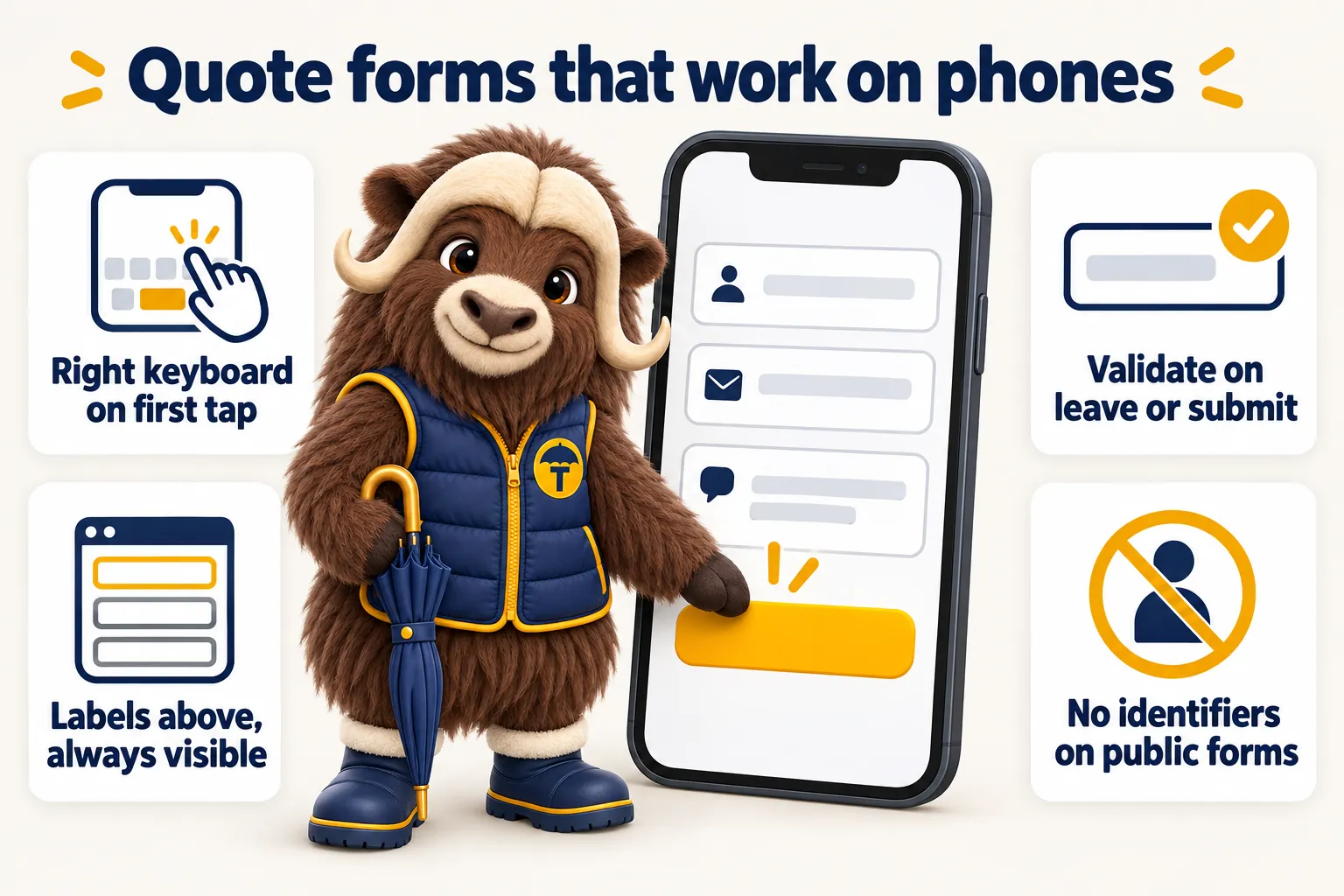
A quote request form works on a phone when it asks only what someone can answer from memory, orders those questions the way a person would say them out loud, opens the right keyboard for every field, and explains any error in words that say what to do next. Everything else in this article is detail underneath those four rules. Field count matters less than field effort, progress bars matter less than never losing what was typed, and the single most expensive mistake is asking for one identifier the applicant has to go and look up.
This article is general information about website design for insurance agencies. GetInsuranceWebsite is a website design and management company. We are not an insurance agency, broker, carrier or licensed producer, and nothing here is advice about coverage, rates or eligibility. What your forms must say, what consent you need before you text somebody, and what your carriers require you to collect are questions for your own compliance advisers and your carriers, not for a web design article.
The phone is where the form is actually filled in
Most people who find an independent agency through search will try to request the quote from the same phone they searched on. That makes the phone the primary design target and the desktop layout the adaptation, not the other way round. A form that was designed at a desk and then squeezed into one column usually carries desktop habits that hurt on a phone: side-by-side fields that become cramped, a two-column address block, a date picker built for a mouse, and a submit button that sits below three paragraphs of small print.
Designing phone first also forces the length conversation early. On a wide screen a long form looks organised. On a phone the same form is a scroll that never ends, and the person can feel exactly how much is left. There is nowhere to hide a field that should not have been there.
What changes when the screen is a phone
Four things change. Typing is slower and more error prone, so every character you ask for costs more. Context is worse, because the person is often standing, walking or between calls, and cannot go and find a document. Interruptions are constant, so a form that loses its contents when the person switches apps to check something is a form that never gets submitted. And the keyboard eats half the screen, so the field being typed into and the next control need to sit in the top half of the viewport when the keyboard is open.
Test on a real device on a real connection
Test on an actual phone, on cellular, not only in a desktop browser with the viewport narrowed. A desktop emulator will not show you the keyboard covering the submit button, the autofill bar appearing above the keyboard, the tap that lands between two fields, or the layout shifting as a web font swaps in. It also will not show you how long the page takes to become usable on a weak connection, which is the part of the experience that decides whether the form is seen at all. The Core Web Vitals guidance from web.dev is the right reference for what to measure there, and page speed is one of the things we hold every build to on the features page.
Field order: the sequence that keeps people typing
Order the fields the way a person would tell you the same information out loud, easiest first. Someone who has already typed their first name has made a small commitment and is more likely to finish. Someone whose first field is a demand for their current policy number has been given a reason to leave before they have given you anything.
Start with the line of business, then the person
On an agency site the first question should usually be which line the request is about, and on a dedicated line page that question is already answered by the page itself and should be a hidden field rather than a question. Knowing the line first lets the rest of the form be written for that line, lets the request route to the right producer at submission, and lets your reporting break requests down by line without anybody reading a free-text box. The personal lines and commercial lines pages under /for each describe the different sets of forms this produces.
After the line comes the person: first name, last name, then the single best way to reach them. Ask for the contact method they prefer rather than demanding both a phone number and an email address as required fields. Requiring both raises abandonment and rarely improves the reply, since the producer will use whichever channel the person actually answers.
Then the risk, in two or three questions
After the contact details, ask the two or three facts that identify the risk well enough to open a quote. For personal auto that is usually a ZIP code, how many vehicles and how many drivers. For homeowners it is the property address and roughly when the house was built. For a business owners policy it is the business name, what the business does and where it operates. For a group benefits enquiry it is the company, roughly how many employees, and when the current plan renews. Each of those is answerable from memory. None of them requires opening a drawer.
Keep the optional field last and clearly optional
An open comment box belongs at the end and should be marked optional in words, not only by the absence of an asterisk. Some people will write a paragraph that saves the producer a phone call. Most will skip it. What matters is that nobody stalls at it thinking it is required.
Mark required and optional in words
Mark every field so a person knows before they tap it whether they have to answer. If nearly every field is required, mark the few optional ones. If most are optional, mark the required ones. An asterisk alone is not enough, because its meaning has to be learned from a legend that may be off screen on a phone. The W3C forms tutorial covers this and the rest of the labelling requirements in practical detail.
Input types and keyboards
Set the input type to match the data, because on a phone the type decides which keyboard appears. This is the single cheapest improvement available to most agency forms and it is regularly missed. Getting it wrong means an applicant tapping through to the number pad every time they reach a phone field, or hunting for the at sign on a keyboard that does not show one.
The mapping worth memorising
| Field | Input type | Keyboard or behaviour to expect |
|---|---|---|
| First name, last name | text, with the matching autocomplete token | Standard keyboard with autocapitalisation on words |
| Email address | Keyboard showing the at sign and a dot | |
| Phone number | tel | Dialing keypad |
| ZIP code | text with inputmode numeric | Number pad, with leading zeros preserved |
| Number of vehicles, drivers, employees | text with inputmode numeric | Number pad, no spinner arrows to mis-tap |
| Street address, city | text, with the matching autocomplete token | Standard keyboard, address autofill offered |
| State | select, or text with an address-level autocomplete token | Native picker rather than a custom dropdown |
| Year built, year of vehicle | text with inputmode numeric | Number pad |
| Date the coverage is needed | date | Native date picker |
| Line of business | select or a set of large radio buttons | Native picker or thumb-sized options |
| Anything freeform | textarea | Standard keyboard, room for a few lines |
Two notes on that table. Use text with an inputmode of numeric rather than input type number for ZIP codes and counts, because the number input type adds spinner arrows that are easy to hit by accident on a phone and can strip a leading zero from a ZIP code. And prefer the native select on a phone over a custom dropdown built from divs, because the native control gives a full screen picker, works with the screen reader, and cannot break on a device you did not test.
Autocomplete tokens are free completion
Add the standard autocomplete token to every contact field so the phone can fill it from the person’s own saved details. Given name, family name, email, tel, street address, address level 2 for the city, address level 1 for the state and postal code are the ones that matter on a quote form. Doing this turns four or five fields into a single tap for anyone who has saved their details, which on a phone is most people. It is also an accessibility requirement in its own right, since identifying the purpose of an input helps people using assistive technology and personalisation tools.
Let the layout be one column
One field per row, full width, every time. Side-by-side fields on a phone produce cramped inputs that are hard to tap and hard to read. The only common exception people reach for is first name and last name side by side, and even that is worth giving up for the extra width.
How long a form can be before it is abandoned
There is no universal field count at which a form starts losing people, and you should distrust any article that names one. What is consistent is that abandonment tracks the effort each field demands rather than the number of fields on the page. Three questions answered from memory cost far less than one question that requires the applicant to find a document.
Sort every candidate field into three buckets
Before adding a field, sort it. Bucket one is answerable from memory while standing up: a name, a ZIP code, how many cars, roughly when the house was built. Bucket two requires a small decision: which line, whether they own or rent, when they want cover to start. Bucket three requires a document, a lookup or a private detail: a policy number, a VIN, an experience mod, a date of birth, an account number. Bucket one is cheap. Bucket two is affordable. Bucket three should not be on a public marketing form at all, and the producer will collect it in the first conversation anyway.
Every required field must earn its place
For each required field, ask what changes if it is missing. If the producer would still open the file and still make the first call, the field is not required and probably should not be on the page. If the answer is that reporting would be slightly less tidy, that is not a reason to make an applicant type. Optional fields are cheaper than required ones, but they still add length and still add a decision, so they are not free either.
Measure your own abandonment
The only reliable length limit is the one your own traffic tells you. Track how many people start the form, how many reach the last field, and how many submit, and look at it by line of business, because the tolerance for a commercial submission is different from the tolerance for a renters quote. If the drop happens at one field, that field is the problem, and nine times out of ten it is a bucket three field that crept in. There is more on counting this without vanity metrics over on the blog.
Error and validation copy
Validation should help someone finish rather than tell them they failed. That means validating at the right moment, saying what to do rather than what went wrong, and never throwing away what the person already typed.
Validate on leaving the field, not on every keystroke
Validating on every keystroke means the person is told their email address is invalid while they are still typing the first half of it. Validate when the field loses focus, and again on submit. The one useful exception is positive confirmation: showing a quiet tick once a field is clearly complete is reassuring rather than accusatory. Never move focus or reorder the page while someone is typing, since a change of context on input is disorienting and, for someone using a screen reader or a switch device, can make the form impossible to complete.
Write the error as an instruction
The message should name what is needed and give an example. “Enter a ZIP code, for example 33602” beats “Invalid”. “Enter an email address so we can send your quote, for example name@example.com” beats “Please enter a valid email”. Keep the tone of the rest of the site: plain, calm and specific. Do not blame the person, do not use exclamation marks, and never use technical wording that leaked out of the code.
Put the message with the field and announce it
Place the error next to the field it belongs to, not only in a summary at the top. If you also use a summary, make each item in it a link that moves focus to the offending field. Associate the message with the input programmatically so assistive technology announces it, and never signal an error by colour alone, since a red border means nothing to someone who cannot see it or cannot distinguish it. Add an icon or a word as well as the colour.
Never lose what was typed
If a submission fails, every answer must still be there when the page comes back. On a phone this is not a nicety. Someone who has just retyped a business name and an address once will not do it twice. Keep the values, mark the fields that need attention, and scroll to the first one rather than to the top of the page.
Be forgiving about formatting
Accept a phone number with or without brackets, dots, spaces or a leading one, and normalise it yourself. Accept an address in the form the person types it. Accept a business name with punctuation in it. Rejecting a submission because a phone number had a space in it is the agency losing a quote request over a regular expression.
Multi-step versus a single page
A single scrolling page is the right default, and steps are the exception that has to earn itself. The reason people reach for steps is usually that the form is too long, and splitting a form that is too long does not make it shorter. It makes it feel longer, because now there are unknown screens ahead.
When a single page wins
Use one page when every applicant answers roughly the same questions, when the form fits in a short scroll, and when nothing later in the form depends on an earlier answer. Most personal lines quote request forms fit this description comfortably. The advantages are real: the person can see the whole ask, can jump back to fix something without navigation, and can submit as soon as they are ready.
When steps earn their keep
Use steps when the form genuinely branches, which on an agency site usually means commercial lines and group benefits. If knowing what the business does changes which questions come next, asking that question on its own screen and then showing a short, relevant set is better than showing every possible question at once with most of them irrelevant. The same applies when a request can cover several lines and the applicant needs to pick which ones before you know what to ask.
If you use steps, show honest progress
Show how many steps there are and which one the person is on, and do not lie about it. A progress bar that sits at the halfway mark for four screens teaches people that the bar means nothing. Label the steps with what they cover, such as “About you”, “About the vehicle” and “How to reach you”, so someone can see what is coming. Keep the number of steps small. Three is comfortable, five is pushing it.
Keep the answers and allow going back
Every step must preserve what was entered when the person moves forward or back, and the back control has to be obvious and not rely on the browser button. If a person closes the page and returns from the same device, restoring what they had entered is a real improvement, as long as you are storing only what is on the form and you say so. Never store anything sensitive locally, which is another argument for keeping sensitive fields off the form entirely.
One submit, one confirmation
Whatever the structure, the final action is a single clear button whose label says what will happen, such as “Request my quote”. Disable it while the submission is in flight so nobody sends the same request three times, and send them to a confirmation that says what happens next and roughly when somebody will reply. Do not promise a premium, a rate or an eligibility decision on the confirmation screen, because a form is not a quote.
Labels, tap targets and accessibility
Accessible forms are the same forms that work well for everybody on a phone, which is why this section is not an afterthought. The requirements below are not exotic. They are the ordinary practice that a form built in a hurry tends to skip.
Labels above the field, always visible
Every field gets a real label element tied to its input, positioned above the field so it is not covered by the keyboard or squeezed on a narrow screen. Keep the label visible once typing begins. A floating label that shrinks is acceptable if it remains readable at its small size and keeps enough contrast. A label that vanishes is not.
Placeholder text is not a label
Placeholder text disappears the moment someone starts typing, which is exactly when they may need to check what the field wanted. It is also usually rendered in low contrast grey, it is not reliably announced, and it invites people to type over an instruction they have not finished reading. Use a placeholder only for a format example that supplements a visible label, and be prepared to move the example to hint text under the field instead.
Hint text before the field, not after the mistake
If a field needs explaining, explain it above or under the label, before the person answers. “We use this to find the carriers appointed in your state” under a ZIP field prevents the hesitation. Telling somebody after they got it wrong is a worse experience than telling them first.
Tap targets and spacing
Make every interactive thing comfortably thumb sized. The W3C sets a minimum target size of 24 by 24 CSS pixels at level AA, and an enhanced level of 44 by 44 CSS pixels. Treat the enhanced figure as the working target on a form, because people fill these in one handed and often while moving. Space controls so neighbouring targets are not hit by accident, give radio buttons and checkboxes a tappable label rather than expecting a hit on the small circle itself, and make the submit button full width.
Focus, contrast and zoom
Keep a visible focus indicator on every control, since people navigate forms with keyboards and switch devices as well as thumbs. Keep the text contrast high enough to read outdoors on a phone in daylight, which is a stricter real world test than a contrast checker. Do not disable zoom. A form that cannot be pinched open is unusable for a large group of people, and disabling zoom buys nothing.
Reading order and grouping
The order in which controls appear in the markup must match the order they appear on screen, because that is the order a screen reader and a keyboard will follow. Group related controls, such as a set of radio buttons for the line of business, inside a fieldset with a legend so their shared question is announced. Give the form a heading that says what it does. These are the details our development work covers as standard rather than as an upgrade.
What never to ask on a public marketing form
Keep every identifier and every health detail off the public form. The list is short and firm: Social Security numbers, driver license numbers, full vehicle identification numbers, bank account and card details, dates of birth used for identity verification, current policy numbers, and anything about health, conditions, medications or treatment. None of these are needed to open a quote, and all of them belong in a secure carrier portal, a signed application or a conversation with the licensed producer who owns the file.
There are three reasons to hold that line, and all three are practical. The first is trust: a person who met your agency thirty seconds ago will not type a Social Security number into a web page, and being asked makes them wonder about the agency. The second is length: every sensitive field is also a bucket three field, one that requires a document or a decision, so it costs you completions as well as goodwill. The third is responsibility: data you collect is data you must protect, retain correctly and delete on request, and a marketing site is the wrong place to hold it. Collecting less is both the safer and the more effective choice.
Health, Medicare and benefits forms need extra care
Forms for Medicare, life, health and group benefits need more care again, because a question about conditions or medications turns a marketing form into something quite different. Ask for contact details and a general reason for the enquiry from a short menu, and let the licensed agent take the rest of the conversation through the channel your carriers and your compliance advisers approve. Confirm the specifics with your carrier, your upline and your own compliance counsel before publishing any form on those lines.
Consent language, in plain words
If the agency will text the person, the form should say so plainly and ask for that permission separately from the submit action. If the agency will add them to a newsletter, that is a separate permission too. Keep the wording short and readable at phone size, and keep it near the button so it is read rather than scrolled past. What the wording has to contain is a question for your compliance advisers and your carriers; the website’s job is to make including it easy and to record what was agreed along with the submission.
Spam protection that does not punish real people
Protect the form without making an applicant solve a puzzle. A hidden honeypot field, a simple timing check and a modern invisible challenge will stop the great majority of automated submissions with no cost to a real person. Old fashioned distorted text is both a barrier for people with low vision and a reason for a genuine applicant to give up, which is a poor trade for a form that produces a handful of requests a week.
A phone-first checklist
Run any agency quote form against this list on a real device before it goes live.
- Every field has a visible label above it, and required or optional is stated in words.
- Every field has the correct input type, and numeric fields use an inputmode of numeric rather than the number type.
- Contact fields carry the standard autocomplete tokens so the phone can fill them.
- The layout is one field per row, full width.
- No field requires a document, an identifier or a health detail.
- The form fits a short scroll, or branches into no more than three labelled steps.
- Validation happens on blur and on submit, never on every keystroke.
- Errors name the field, say what to do, include an example, and are announced to assistive technology.
- A failed submission keeps every value the person typed.
- Interactive targets are thumb sized with space around them, and the submit button is full width.
- Zoom is not disabled and focus indicators are visible.
- The submit button is reachable without fighting the keyboard, and it disables itself while sending.
- The confirmation says what happens next and does not promise a premium, a rate or an eligibility decision.
Where this fits in the rest of the site
A well built form only pays off if the request goes somewhere. The submission should land in the agency management system or CRM with the line of business, the source page and the answers already attached, and the producer on duty should be told through the channel they actually watch. A form that emails an inbox nobody owns wastes the design work described above. Our plans include that routing as part of the build rather than as an integration project, and if you would rather see a line page and its form on your own screen than read about it, book a demo.
The last word is on restraint. Most agency forms improve by removing, not adding. Take out the field you added because somebody once wanted it for reporting, take out the second required contact method, take out the question the producer asks on every call anyway, and watch what happens to completions. The form is not the place to qualify a request thoroughly. It is the place to earn the right to a conversation.
Sources
- Nielsen Norman Group, Website Forms Usability
- W3C Web Accessibility Initiative, Forms Tutorial
- W3C, Understanding SC 2.5.8 Target Size (Minimum) (Level AA)
- W3C, Understanding SC 2.5.5 Target Size (Enhanced) (Level AAA)
- W3C, Understanding SC 3.3.2 Labels or Instructions
- W3C, Understanding SC 3.3.1 Error Identification
- W3C, Understanding SC 3.3.3 Error Suggestion
- W3C, Understanding SC 1.3.5 Identify Input Purpose
- MDN Web Docs, The input element
- MDN Web Docs, The inputmode global attribute
- MDN Web Docs, The autocomplete attribute
- web.dev, Web Vitals
Frequently asked questions
How many fields should an insurance quote request form have on mobile?
There is no universal number, and any article that gives you one measured it on someone else's traffic. The useful test is effort rather than count: a form that asks only for things the person can answer from memory while standing in a parking lot can carry more fields than a form that asks for one policy number they have to go and find. In practice most agency quote forms on a phone hold the name, the best contact method, the line of business, a location, and one or two facts that identify the risk. If a field cannot be answered from memory, move it to the conversation the producer has after the first reply, and count your own abandonment rate before adding anything back.
What input types and keyboards should an insurance quote form use on a phone?
Use the input type that matches the data so the phone shows the right keyboard on the first tap. Email fields use type email, which brings up a keyboard with the at sign visible. Telephone fields use type tel, which brings up the dialing keypad. ZIP codes and numeric counts such as the number of vehicles use text with an inputmode of numeric, which gives the number pad without the spinner arrows and without stripping leading zeros. Dates use a native date input where the answer is a real calendar date. Pair each field with the matching autocomplete token so the phone can fill the name, phone, email and address from the person's own saved details instead of making them type.
Should an insurance quote form be multi-step or a single page on mobile?
A single scrolling page wins for short forms, and steps only earn their keep when the form genuinely branches. If every applicant answers the same five or six questions, splitting them across screens adds taps, hides how much is left, and gives people more places to abandon. Steps are worth it when the answer to an early question changes which questions come next, for example when a commercial form asks what the business does and then shows different follow-up questions for a contractor than for a restaurant. When you do use steps, show real progress, keep every answer if the person goes back, and never make the person retype something they already gave you.
What should a form validation error message say?
It should name the field, say what is wrong, and say what to do instead, in the same plain language the rest of the page uses. A message that reads "Enter a phone number we can reach you on, for example 555 123 4567" is useful. A message that reads "Invalid input" is not, because it tells the person they failed without telling them how to succeed. The error must also be reachable without sight: attach it to the field programmatically so a screen reader announces it, place it next to the field rather than only at the top of the page, and never rely on red text alone to signal that something is wrong. The W3C guidance on error identification and error suggestion sets out what this requires.
What should a public insurance marketing form never ask for?
Social Security numbers, driver license numbers, full vehicle identification numbers, bank or card details, dates of birth used as identity verification, health conditions, medications, and policy numbers from a current carrier. None of them are needed to open a quote, all of them lengthen the form, and every one of them creates data the agency now has to protect, retain correctly and delete on request. Those details belong in a secure carrier portal, a signed application or a call with the licensed producer who owns the file. A marketing website is the wrong place to hold them, and asking for them on a first visit costs the agency requests it would otherwise have received.
How big should a tap target be on a mobile quote form?
Big enough that a thumb hits it without aiming. The W3C sets a minimum target size of 24 by 24 CSS pixels at level AA, with an enhanced level of 44 by 44 CSS pixels. Treat the enhanced figure as the working target for a form that people fill in one handed, and give buttons and checkboxes room around them so neighbouring targets are not struck by accident. The submit button deserves the most room of anything on the page: full width, high contrast against the background it sits on, and a label that says what happens next rather than the word Submit.
Want a site like the one described here? Book a demo with GetInsuranceWebsite.